

How to get Google to index a new page fast
There is no reliable way to get Google to index a page in 5 minutes, and nobody can guarantee it. What you can do is help Google find the page quickly: request indexing in Search Console’s URL Inspection tool, make sure the page is in your sitemap, link to it from pages Google already visits, and remove anything that blocks it.
Google’s own documentation says indexing typically takes about a day after a request, can take a week or two, and sometimes doesn’t happen at all. This guide shows the steps that actually speed things up, what the “Discovered” and “Crawled – currently not indexed” statuses mean, and where IndexNow fits in (hint: not with Google).
Last updated: 7 November 2026
How long does it take Google to index a new page?
Usually somewhere between a day and a few weeks. Google’s guide on how to ask Google to recrawl your URLs says crawling “can take anywhere from a few days to a few weeks”, and that requesting a crawl doesn’t guarantee inclusion “instantly or even at all”. The Search Console help page for the URL Inspection tool says indexing after a request “typically takes only a day or so, but can take much longer in some cases”.
The same recrawl guide adds a line that matters more than any trick: Google’s systems “prioritize the fast inclusion of high quality, useful content.” Speed comes from Google wanting your page, not from a button.
So why do old blog posts promise indexing in minutes? Sometimes a page does show up very quickly, especially on a site Google crawls often. But that is Google’s scheduling, not something you control. Treat any “instant indexing” promise as marketing.
What are crawling and indexing, and why does the difference matter?
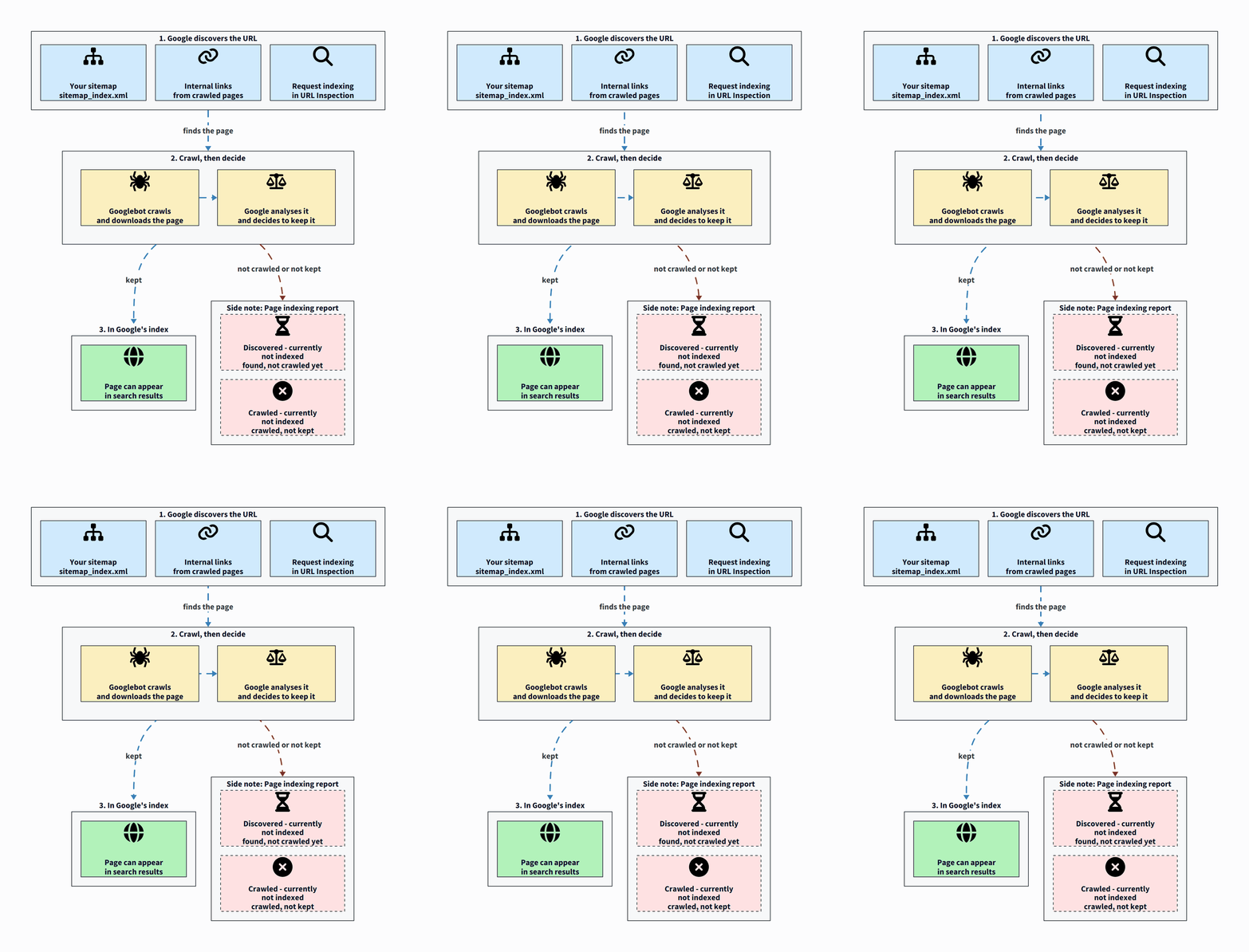
Two separate things have to happen before a page can appear in Google:
- Discovery and crawling. Google learns the URL exists (from a link, a sitemap or a request) and Googlebot downloads the page.
- Indexing. Google analyses the page and decides whether to store it in its index. Not every crawled page is kept.
Google’s crawl budget guide says it plainly: “not every page that is crawled will necessarily be indexed. After crawling, each page must be evaluated, consolidated, and assessed to determine its suitability for the index.”
This is why the fixes are different. If Google hasn’t found or crawled your page, the job is to make it easier to discover. If Google crawled it and chose not to index it, the job is to make the page worth indexing.
How do you use URL Inspection to request indexing?
This is the fastest official way to put one page in front of Google. You need a Google Search Console property for your site, and you must be an owner or full user of it. If you haven’t set up Search Console yet, the WordPress blog setup guide covers it.
- Publish the page and open it in a private browser window to confirm it loads without a login.
- Open Search Console and choose your property.
- Paste the full URL into the inspection search bar at the top and press Enter.
- If it says “URL is not on Google”, run a live test to check that Google can fetch the current version.
- If the live test passes, click Request indexing.
- Wait. Check back with the same tool in a day or two.
According to the URL Inspection tool help page, the page first goes through a quick check for immediate indexing errors, and if it passes, it is “submitted to the indexing queue”. You can’t request indexing if the live test shows the page is not indexable.
What are the limits of Request indexing?
- There is a daily quota. Google says there is a daily limit to how many index requests you can submit per property. It doesn’t publish the number.
- Repeating it doesn’t help. Google says requesting a recrawl multiple times for the same URL won’t get it crawled any faster.
- It is for a few URLs. For many new or updated pages, Google recommends a sitemap with the updated pages marked by
<lastmod>. - It is not a guarantee. Submitting a request doesn’t guarantee the page will appear in the index.
A sensible habit: request indexing once for each important new post, and for an older post after a real update. Don’t use it for every small edit.
Do you still need a sitemap?
For most blogs, yes, and the good news is you probably already have one. Google’s sitemap overview says that if you use a CMS such as WordPress, it’s likely your CMS has already made a sitemap available, and you don’t have to do anything.
Google says you might not need a sitemap if your site is small (about 500 pages or fewer) and well linked internally. But it also lists a case that fits almost every new blog: “Your site is new and has few external links to it.” Googlebot finds pages by following links, so a new site with no links pointing to it benefits from a sitemap.
Where is your WordPress sitemap?
WordPress has created a sitemap at /wp-sitemap.xml since version 5.5. SEO plugins often replace it with their own. On this site, which runs Yoast SEO, /wp-sitemap.xml redirects to /sitemap_index.xml, and the robots.txt file lists that sitemap (checked on 7 November 2026). Open yourdomain.com/robots.txt to see which one your site uses.
How do you submit a sitemap to Google?
- In Search Console, open Sitemaps in the left menu.
- Enter the sitemap URL (for example
sitemap_index.xml) and click Submit. - Check back for the status. The Sitemaps report shows when Googlebot read the file and any processing errors.
You only need to submit it once. Google’s build and submit a sitemap guide also says you can add a Sitemap: line to robots.txt, which most SEO plugins do for you.
What do the sitemap tags actually do?
<lastmod>matters. Google uses it if it is “consistently and verifiably” accurate, and it should reflect the last significant update. Changing a sidebar doesn’t count; changing the main text, structured data or links does.<priority>and<changefreq>don’t. Google says it ignores both.- Size limits: one sitemap can hold up to 50,000 URLs or 50MB uncompressed. A blog won’t hit that for years.
Does pinging Google with your sitemap still work?
No. Google deprecated the sitemap “ping” endpoint in June 2023, and pings to it now return a 404 error. Google said old plugins that still ping won’t cause problems, but the ping “will also not do anything useful”. Submit through Search Console or robots.txt instead.
Why do internal links help Google find new pages?
Because links are the main way Googlebot discovers URLs. Google’s guide to crawlable links says: “Every page you care about should have a link from at least one other page on your site.” A brand new post that isn’t linked from anywhere (an “orphan” page) relies only on your sitemap or a manual request.
When you publish a new post, link to it from:
- Your homepage or blog page. Most themes list new posts automatically. Check that yours does.
- Two or three related older posts. Pick posts that already get traffic, since Google revisits those more often. Add a sentence with a descriptive link, not just “click here”.
- A category or hub page, if your site has one for the topic.
The link also has to be crawlable. Google can generally only follow a link if it is an <a> element with an href attribute. Normal links in the WordPress editor are fine. Buttons that rely on JavaScript to navigate may not be.
Don’t add nofollow to your own internal links. It doesn’t help, and it can make discovery harder. The difference between link types is explained in dofollow vs nofollow links.
Links from other sites help discovery too. Sharing a new post where your readers already are can bring the first visitors and, sometimes, the first links; see how to promote your blog.
Does crawl budget matter for a small blog?
Almost certainly not. Google’s crawl budget guide says it is written mainly for large sites (1 million or more unique pages changing about weekly), medium sites (10,000 or more pages changing daily), and sites with a large share of URLs stuck in “Discovered – currently not indexed”. If your pages are crawled the same day they are published, Google says you don’t need to read it, and for most sites keeping the sitemap up to date and checking the Page indexing report is enough.
Still, the basic idea is useful to understand. Crawl budget is the set of URLs Google “can and wants to crawl” on a site. It depends on two things:
- Crawl capacity limit. How much Google can crawl without overloading your server. If your site responds quickly and reliably, the limit goes up. If it slows down or returns server errors (5xx) or rate-limiting signals (429), Google crawls less.
- Crawl demand. How much Google wants to crawl. For Googlebot this depends on the site’s size, update frequency, page quality and relevance. Google names the factors you can influence: perceived inventory (lots of duplicate or useless URLs waste crawling), popularity, and staleness.
For a blog, this turns into three simple habits: keep your hosting fast and stable, don’t create piles of thin or duplicate URLs (empty tag pages, endless filter combinations), and publish pages people actually want. That last one does more for crawl demand than any setting.
What do “Discovered – currently not indexed” and “Crawled – currently not indexed” mean?
These are two of the most common statuses in Search Console’s Page indexing report, and they mean different things. The definitions below are from Google’s Page indexing report help page.
Discovered – currently not indexed
What Google says: the page was found by Google but not crawled yet. Typically Google wanted to crawl the URL but expected it to overload the site, so it rescheduled the crawl. That is why the last crawl date is empty.
What to do:
- Check your server is fast and isn’t returning errors. Your host’s error logs are a good place to start.
- Make sure the page has internal links from pages Google already crawls.
- If many URLs have this status, look for low-value URLs eating Google’s attention: duplicate archives, parameter URLs, thin tag pages.
- Give it time. On a new site, a few pages sitting here for a while is normal.
Crawled – currently not indexed
What Google says: the page was crawled but not indexed. Google doesn’t index all pages across the web, so this is a common message and “doesn’t necessarily indicate an issue that needs attention.” For important pages, Google suggests using URL Inspection to check whether something on your site is preventing it.
What to do:
- Inspect the URL and run a live test. Look for a
noindextag, a canonical pointing elsewhere, or content that doesn’t render. - Ask honestly whether the page adds something. Is it a near-copy of another post on your site? Is it short and generic? If so, improve it or merge it into a stronger post.
- Strengthen internal links to it from related posts.
- After a real improvement, request indexing once. Don’t resubmit an unchanged page again and again.
For a broader look at technical problems that keep pages out of Google, see the most common SEO mistakes bloggers make.
What is IndexNow, and does Google use it?
IndexNow is an open protocol that lets a website notify search engines the moment a URL is added, updated or deleted. Instead of waiting for a crawler, your site sends a ping with the URL and a key that proves you own the domain.
The IndexNow.org homepage lists support from Microsoft Bing, Naver, Seznam.cz, Yandex and Yep. Google is not on that list (checked on 7 November 2026). So IndexNow can help your pages get picked up faster by Bing and the other participating engines, but it does nothing for Google. For Google, use URL Inspection, sitemaps and internal links.
A few facts from the IndexNow FAQ:
- A submission to one participating endpoint is shared with all IndexNow-enabled search engines.
- Submitting a URL “does not guarantee immediate indexing”. Each engine decides for itself.
- Submitted URLs count toward your site’s crawl quota, so submit real changes, not every page every day.
- If your CMS or SEO plugin supports IndexNow, you don’t need to create a key file yourself.
How do you add IndexNow to WordPress?
Pick one route, not several:
- The IndexNow plugin from Bing Webmaster Tools. On its wordpress.org listing (checked on 7 November 2026) the plugin “IndexNow Plugin” by bingwebmastertools shows version 1.0.4, 100,000+ active installations, a last update on 26 June 2026, and “tested up to” WordPress 7.0.8. That tested version is one release behind the current WordPress 7.1.4, so test it on your site before relying on it.
- Your SEO plugin. Rank Math’s wordpress.org listing describes an Instant Indexing module that sends URLs to api.indexnow.org when content is published or updated. All in One SEO and Yoast SEO also list IndexNow among their features, in some cases as a paid add-on or Premium feature, so check your version.
Running two IndexNow integrations at once just sends duplicate pings. If you are unsure how to add a plugin, see how to install a WordPress plugin.
What about Google’s Indexing API?
You may see plugins that use Google’s Indexing API to “instantly index” any post. Google’s Indexing API documentation says it can only be used for pages with JobPosting or BroadcastEvent embedded in a VideoObject, meaning job listings and livestream videos. It isn’t meant for blog posts.
What is a good routine for every new post?
Here is a checklist that takes about five minutes of your time, even though Google’s part takes longer:
- Before publishing: confirm the post isn’t set to noindex in your SEO plugin, and that Settings, Reading, “Discourage search engines from indexing this site” is unticked. When that box is ticked, WordPress adds a
noindex, nofollowrobots meta tag to the whole site, according to the WordPress Reading Settings documentation. - Publish and open the URL in a private window.
- Add two or three internal links to it from related posts that already get visits.
- Check the sitemap lists the new URL.
- Inspect the URL in Search Console and click Request indexing once.
- Share it where your readers are.
- Check again in a few days. If it is still missing after a couple of weeks, look at the Page indexing report status and follow the steps above.
If you are earlier in the journey, start with how to start a blog, and for the bigger picture on ranking after indexing, read SEO tips for bloggers and how to increase website traffic.
Frequently asked questions
Can you really get Google to index a page in 5 minutes?
Not reliably. Google says indexing after a request typically takes about a day and can take a week or two, and that a request doesn’t guarantee indexing at all.
How many times should I click Request indexing?
Once. Google says requesting a recrawl several times for the same URL won’t get it crawled faster, and there is a daily limit per property.
Does Google support IndexNow?
No. IndexNow.org lists Microsoft Bing, Naver, Seznam.cz, Yandex and Yep as supporting engines, and Google is not among them (checked on 7 November 2026).
Is “Crawled – currently not indexed” a penalty?
No. Google says it is a common message that doesn’t necessarily mean there’s a problem. For important pages, check them with URL Inspection and improve the content if it is thin or duplicated.
Do I need to submit my sitemap every time I publish?
No. Submit it once in Search Console. Google reads it again over time, and WordPress or your SEO plugin updates it automatically when you publish.