
How to set up a WordPress blog the right way
To set up a WordPress blog the right way, get hosting that runs a current PHP and database version with HTTPS, install WordPress, then change four settings before you write anything: permalinks, timezone, discussion and search visibility. After that, add a lightweight theme, four plugins (SEO, backups, security, SMTP email), turn on backups and a few security settings, connect Google Search Console and run a short launch checklist.
This guide walks through each step in order, using the setup of this site as a worked example. If you have not picked a topic or a name for your blog yet, start with how to start a blog and come back here when you are ready to build.
Last updated: 7 November 2026
What hosting does a WordPress blog need?
WordPress itself asks for very little. The official WordPress requirements page recommends a host that supports:
- PHP version 8.3 or greater
- MariaDB version 10.11 or greater, or MySQL version 8.0 or greater
- HTTPS support
It also recommends Apache or Nginx as the web server (Apache with the mod_rewrite module, so pretty URLs work). WordPress still runs on PHP 7.4 and MySQL 5.5.5, but the same page warns that those versions have reached end of life and may expose your site to security problems. If a host only offers old versions, pick another host.
When you compare hosts, ask these questions before you pay:
- Which PHP and database versions do you run, and can I switch PHP versions myself?
- Is a free HTTPS certificate included and renewed automatically?
- Do you take daily backups, and can I restore one myself?
- Can I set up a real cron job (a scheduled task on the server)?
- Do you block outgoing SMTP ports? (This matters for email later.)
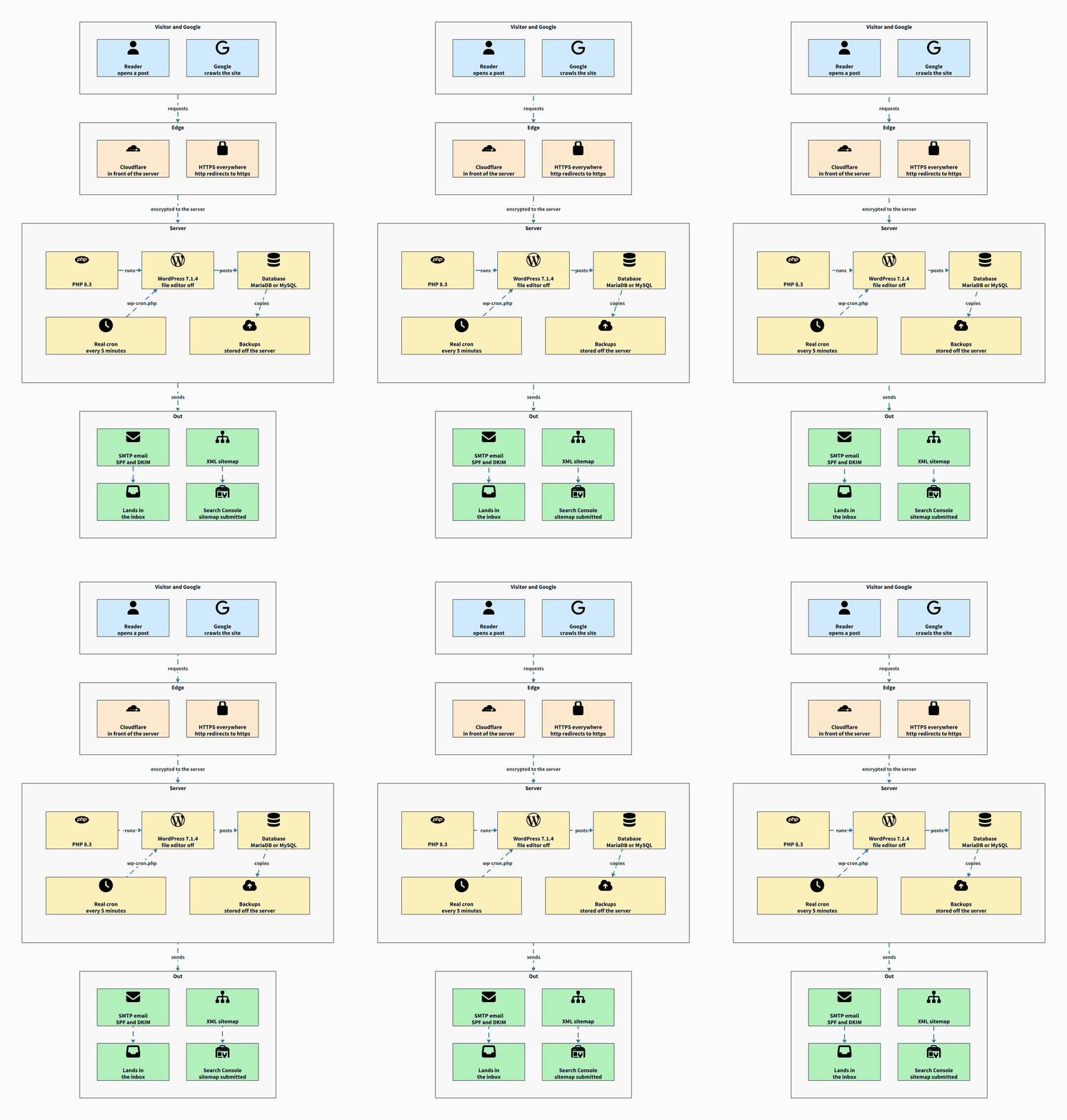
For reference, this site runs WordPress 7.1.4 on PHP 8.3, which matches the current recommendation.
How do you install WordPress?
You have two routes, and both end in the same place.
The one-click route
Most hosts and server control panels have a WordPress installer. You pick the domain, choose an admin username and password, and the panel creates the database and runs the installer for you. For a first blog, this is the sensible choice.
The manual route
The official installation guide covers the manual steps. In short:
- Download WordPress from wordpress.org and unzip it.
- Create a database and a MySQL (or MariaDB) user with all privileges on it.
- Upload the WordPress files to your web server.
- Visit your domain in a browser and run the installer. It will create
wp-config.phpfor you if you did not rename and fill inwp-config-sample.phpyourself.
Two choices to get right during install
- Admin username: do not use “admin”. Pick something that is not your public author name.
- Password: use a long random password from a password manager. Your admin account is the key to the whole site.
Which WordPress settings should you change first?
Change these before you publish your first post. Some of them, permalinks especially, are painful to change later.
Permalinks: Settings, then Permalinks
Permalinks decide what your post URLs look like. The Permalinks screen offers options such as day and name, numeric, and post name. Choose Post name, which gives URLs like example.com/sample-post/. This site uses the custom structure /%postname%/, which is the same thing.
Short, readable URLs are easier to share and do not carry dates that make an evergreen guide look old. If you change permalinks after posts are live, old links break unless you set up redirects, so decide now.
Timezone: Settings, then General
Set the timezone to a city in your own timezone, not a UTC offset. Scheduled posts, comment times and post dates all depend on it. While you are on this screen, check the site title, the tagline (replace any default text) and the admin email address, which is where WordPress sends important notices.
Discussion: Settings, then Discussion
Comments are where spam arrives first. The Discussion screen controls them. A safe starting point (the exact wording of each box can vary slightly between WordPress versions):
- Turn off “Allow link notifications from other blogs (pingbacks and trackbacks)”. These are mostly spam on a new blog.
- Turn on the option that requires every comment to be manually approved, so nothing appears on your site until you have read it.
- Keep “Comment author must have a previously approved comment” on as well, if you later relax manual approval.
- If you do not want comments at all, turn off the “Allow people to submit comments on new posts” box.
On this site, every comment is held for moderation and pingbacks are off.
Reading and search visibility: Settings, then Reading
The Reading screen has a box called “Discourage search engines from indexing this site”. When it is checked, WordPress adds a noindex,nofollow robots meta tag to every page.
That is useful while you build, and a disaster if you forget it. A common mistake is launching with the box still checked and then wondering weeks later why Google shows nothing. Put “uncheck search visibility” on your launch checklist (there is one at the end of this guide).
On the same screen, decide whether your home page shows your latest posts or a static page. For most new blogs, latest posts is fine.
How do you choose a lightweight WordPress theme?
Your theme controls how the site looks, and a heavy one can slow every page. Look for these signs of a light theme:
- It is listed in the official wordpress.org theme directory and was updated recently.
- It works with the block editor without needing a page builder plugin.
- It does not ask you to install a bundle of “required” plugins.
- Its demo page loads quickly when you test it in PageSpeed Insights.
Three free themes from the wordpress.org directory that are commonly used for blogs, with figures read from the wordpress.org themes API (checked on 7 November 2026):
- Twenty Twenty-Five (the current default theme): 1+ million active installs, last updated 20 May 2026.
- Astra: 1+ million active installs, last updated 29 October 2026.
- GeneratePress: 500,000+ active installs, last updated 1 December 2025.
Any of these is fine for a new blog. Pick one, set your logo, colors and fonts, and stop there. Time spent on design before you have ten posts is usually time you should have spent writing.
Which plugins does a new WordPress blog actually need?
Every plugin is more code to update and more code that can break or be attacked. Start with four jobs and one plugin per job. This list only includes plugins that are open in the wordpress.org directory and were updated in the last 12 months. The figures below come from the wordpress.org plugins API, checked on 7 November 2026.
| Job | Plugin | Active installs | Last updated |
|---|---|---|---|
| SEO | Yoast SEO | 10+ million | 27 October 2026 |
| Backups | UpdraftPlus | 4+ million | 26 October 2026 |
| Security | Wordfence Security | 5+ million | 30 September 2026 |
| Email (SMTP) | WP Mail SMTP | 4+ million | 20 October 2026 |
Alternatives that also met the same check on the same day: Rank Math SEO (4+ million active installs, updated 3 November 2026) instead of Yoast, and FluentSMTP (700,000+ active installs, updated 4 November 2026) instead of WP Mail SMTP. Use one SEO plugin and one SMTP plugin, never two of each.
What each one does for you:
- SEO plugin: lets you set the title and description for each post, adds canonical URLs and builds an XML sitemap.
- Backup plugin: UpdraftPlus backs up on a schedule to remote storage such as Dropbox, Google Drive or Amazon S3, and restores from the dashboard.
- Security plugin: Wordfence adds a web application firewall, a malware scanner and two-factor login.
- SMTP plugin: sends your site’s email through a real mail service instead of the server’s default mailer. More on why below.
Mistakes to avoid: installing a plugin for every small feature, keeping deactivated plugins you do not use (delete them), and installing plugins from random download sites instead of the official directory.
How do you harden WordPress security?
The official Hardening WordPress guide is long, but for a new blog the basics are:
- Keep everything updated. WordPress core, themes and plugins. Older WordPress versions do not get security fixes.
- Use strong, unique passwords and two-factor login for every admin account.
- Give people the lowest role they need. A guest writer should be an Author or Contributor, not an Administrator.
- Disable the theme and plugin file editor. Add this line to
wp-config.php:define( 'DISALLOW_FILE_EDIT', true );. If someone gets into an admin account, they cannot paste code into your theme from the dashboard. Note that a few plugins check the edit capability and may behave differently with it set. - Block XML-RPC if you do not use it.
xmlrpc.phpis an older remote-publishing interface that attracts login-guessing attacks. If you do not use the WordPress mobile app or an old remote-publishing tool, block it at your web server, firewall or security plugin. - Delete unused themes and plugins. Code that is switched off can still be a weak point if it stays on the server.
This site has the file editor disabled with DISALLOW_FILE_EDIT and blocks XML-RPC.
Should you replace WP-Cron with a real cron job?
WordPress runs scheduled jobs (publishing scheduled posts, update checks, backups started by plugins) through WP-Cron, which only fires when someone visits the site. On a quiet new blog, that means jobs run late. On a busy one, it adds work to page loads.
The WordPress plugin handbook describes the fix: set up a scheduled task on the server that requests wp-cron.php on a timer, then add define( 'DISABLE_WP_CRON', true ); to wp-config.php so WordPress stops running it on every page load. This site uses a real server cron every 5 minutes instead of visit-triggered WP-Cron. If your host’s panel has a “cron jobs” screen, you can do the same.
How do you set up HTTPS on WordPress?
HTTPS encrypts traffic between your visitors and your site, and the WordPress requirements list it as a basic need. Most hosts issue a free certificate from Let’s Encrypt, a nonprofit certificate authority, and renew it automatically.
The steps:
- Turn on the free certificate in your host or control panel for both
example.comandwww.example.com. - In Settings, then General, make sure both the WordPress Address and Site Address start with
https://. - Redirect all
http://traffic tohttps://(most panels have a switch for this). - Open a few pages and check for a padlock and no “mixed content” warnings, which happen when images or scripts still load over
http://.
This site uses a Let’s Encrypt certificate on the server, with Cloudflare in front of it. If you use a proxy like Cloudflare, set its SSL mode so that traffic is encrypted all the way to your server, not only between the visitor and the proxy.
How should you back up a WordPress blog?
A backup you have never restored is a guess. A good setup has three parts:
- Both halves: the database (posts, settings, comments) and the files (uploads, themes, plugins,
wp-config.php). - Off the server: store copies somewhere other than the server they came from, such as cloud storage. If the server fails, backups stored on it fail too.
- On a schedule: daily database backups and weekly file backups suit most new blogs. Keep several older copies, not only the latest.
Use your host’s backups as one layer and a plugin such as UpdraftPlus sending copies to cloud storage as a second. Then do one test: restore a backup to a staging copy or a local install and check that it works. The official WordPress backup guide covers manual methods too.
How do you make a WordPress blog fast?
You do not need a dozen speed plugins. Most of the gain comes from a few habits:
- Current PHP: run the PHP version WordPress recommends.
- Light theme, few plugins: covered above, and the biggest factor you control.
- Page caching: many hosts include it. If yours does not, add one caching plugin.
- Smaller images: resize photos before uploading. A blog post rarely needs an image wider than about 1,600 pixels.
- A CDN: a service like Cloudflare serves static files from locations close to your visitors.
- Fewer third-party scripts: every chat widget, ad script and tracking pixel adds load time.
Measure with PageSpeed Insights, which reports Google’s Core Web Vitals. Test a typical post, not only the home page, and fix the largest problem first.
Why do WordPress emails go to spam?
By default, WordPress sends email (password resets, comment notices, contact form messages) through the server’s own mail function. That mail usually has no proper authentication for your domain, so providers like Gmail cannot confirm it really came from you. It ends up in spam or does not arrive at all.
Gmail’s email sender guidelines ask all senders to set up SPF or DKIM authentication for their sending domain, use valid forward and reverse DNS, and send over a TLS connection. A web server sending mail on its own rarely ticks all of those boxes.
How do you fix it with SMTP?
- Sign up for a transactional email service (many have a free tier for low volumes) or use your existing business email provider.
- Add the DNS records it gives you (SPF, DKIM, and ideally DMARC) to your domain.
- Install one SMTP plugin, such as WP Mail SMTP, and connect it to that service. WP Mail SMTP can use a provider’s API directly, which helps if your host blocks SMTP ports.
- Set the “from” address to an address on your own domain, not a Gmail address.
- Send a test email to a Gmail account and check it lands in the inbox.
This site sends all its email through an SMTP service rather than the server’s default mailer.
How do you connect Google Search Console?
Search Console shows you which searches bring people to your blog, which pages Google has indexed and any problems it found. Google’s Search Console getting-started guide covers the tool itself. To connect your blog:
- Sign in to Search Console with your Google account and add a property.
- Choose a Domain property if you can edit your DNS. It covers
http,https,wwwand every subdomain, and is verified with a DNS record. A URL-prefix property covers only one exact prefix such ashttps://example.com/but offers more verification methods. - Verify ownership, then submit your sitemap. WordPress has created one at
/wp-sitemap.xmlsince version 5.5. If you use an SEO plugin, it usually replaces that with its own sitemap, so submit the URL shown in the plugin’s settings. - Use the URL Inspection tool on your first few posts to check their index status and ask Google to crawl them.
Expect very little data in the first few weeks. That is normal for a new site.
What should be on your WordPress launch checklist?
Go through this list before you tell anyone the blog exists:
- “Discourage search engines from indexing this site” is unchecked.
- Permalinks are set to post name.
- Timezone, site title, tagline and admin email are correct.
- Default content is gone: the “Hello world!” post, the sample page and the sample comment.
- Comments are held for moderation and pingbacks are off (or comments are off entirely).
- HTTPS works on every page, and
http://redirects tohttps://. - Theme set up, unused themes and plugins deleted.
- SEO, backup, security and SMTP plugins installed and configured.
- First backup taken and stored off the server, and a test restore done.
- Two-factor login on for every admin. File editor disabled. XML-RPC blocked if unused.
- Scheduled tasks run reliably (real cron, or at least WP-Cron working).
- A test email from the site reaches a Gmail inbox.
- Search Console verified and sitemap submitted.
- About, Contact and Privacy Policy pages published.
- A PageSpeed Insights test run on a typical post.
Then publish your first real posts. A setup is only worth something once there is writing on it, and our guide to starting a blog covers what to write first.
Frequently asked questions
Is WordPress.org the same as WordPress.com?
No. WordPress.org is where you download the free WordPress software to install on your own hosting, which is what this guide covers. WordPress.com is a hosted service where the software is run for you, with different rules about themes and plugins.
Which PHP version should I use for WordPress?
PHP 8.3 or greater, as recommended on wordpress.org. WordPress still runs on PHP 7.4, but that version is past end of life and no longer gets security fixes.
How many plugins should a new blog have?
As few as cover the jobs you need. For most new blogs that is four: SEO, backups, security and SMTP email. Add more only when you have a specific problem to solve.
Why are my WordPress emails not arriving?
The server’s default mailer usually lacks SPF and DKIM authentication for your domain, so providers filter it. Send mail through an SMTP service with an SMTP plugin and add the DNS records it gives you.
When should I uncheck “Discourage search engines”?
On launch day, once your first posts and basic pages are live. Leaving it checked tells search engines not to index your site at all.