
How to analyse blog traffic sources in GA4 and Search Console
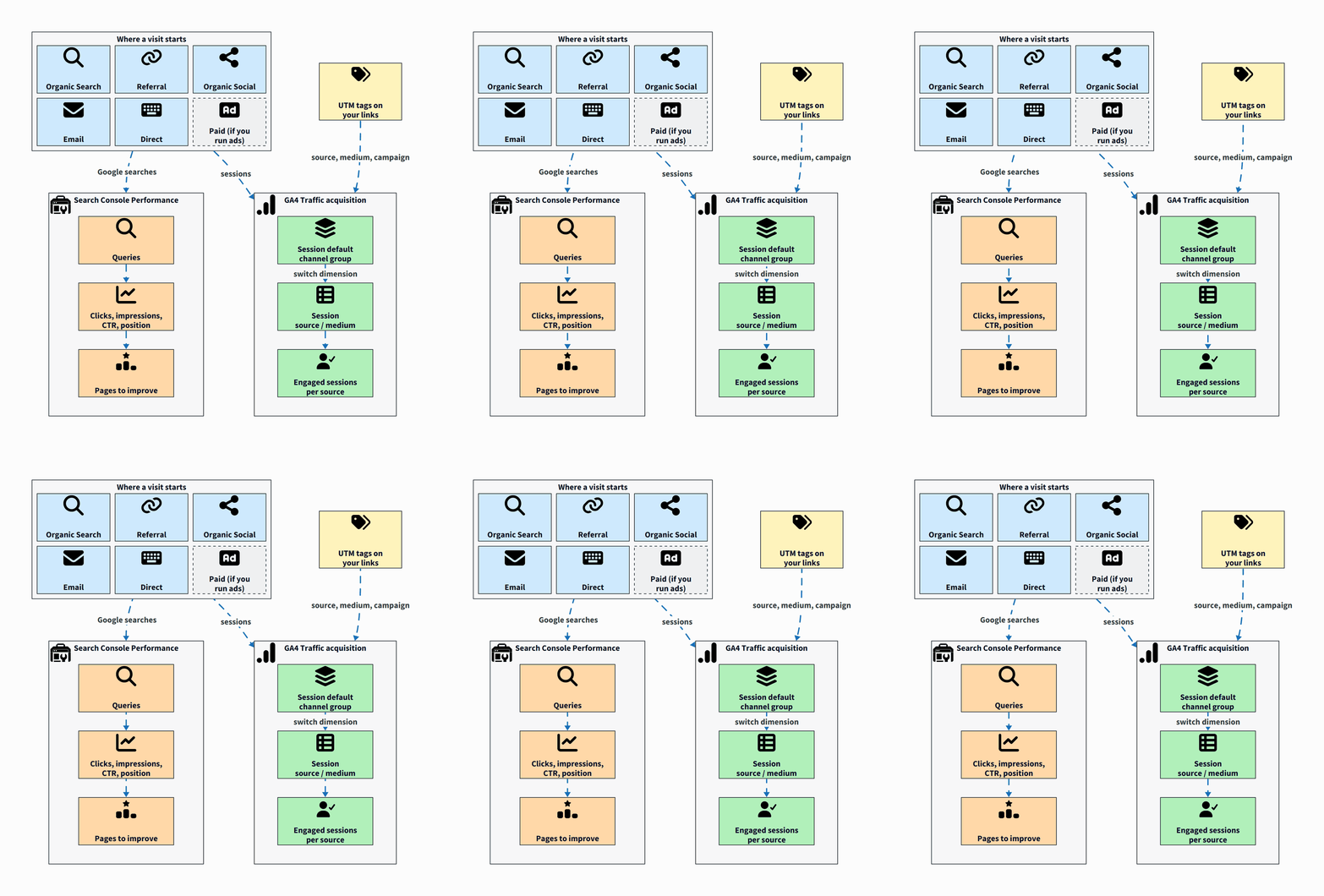
To analyse where your blog traffic comes from, open the Traffic acquisition report in Google Analytics 4, look at sessions and engagement by default channel group, then switch to session source/medium to see the exact sites sending visitors. Tag the links you share with UTM parameters so your own promotion is labelled correctly, and use the Search Console Performance report to see which Google searches bring people in.
This guide shows how to read each of those three tools and what to do with what you find.
What is a traffic source, and why does it matter?
A traffic source is where a visit started: a Google search, a link on another blog, a post on a social network, a newsletter, or someone typing your address. Knowing your sources tells you three useful things:
- Where to spend your time. If search sends most of your engaged readers, improve and write posts rather than posting more on social.
- Which posts work as entry points. A post that keeps pulling search visitors is worth updating and linking to from newer posts.
- Whether a promotion worked. Tagged links show how many sessions a newsletter or share sent and whether those readers stayed.
If you have not set up the basics yet, start with the setup steps in our guide on how to start a blog and the Search Console section of the WordPress blog setup guide, then come back here.
Where is the traffic acquisition report in GA4?
Sign in to Google Analytics, choose Reports in the left menu, then Acquisition, then Traffic acquisition. Google’s help page for the Traffic acquisition report notes that if you cannot see it, it may have been removed or hidden from the navigation, and an Editor or Administrator can add it back.
The report opens grouped by Session default channel group, which is its default dimension. Each row is a channel such as Organic Search or Direct, and the columns show metrics including:
- Sessions: the number of visits that started from that channel.
- Engaged sessions and Engagement rate: how many of those visits involved real interaction.
- Average engagement time per session: how long the page was actually in use.
- Events per session and Event count.
- Key events and Session key event rate: if you have marked an action such as a newsletter signup as a key event.
Traffic acquisition or user acquisition: which one should you use?
Use Traffic acquisition for most blog questions. Google explains that it shows where both new and returning users come from each time they start a session. The User acquisition report only shows where new users first came from, using dimensions that start with “First user”. That makes it useful for one question (“how do people discover my blog for the first time?”) but less useful for judging what keeps bringing readers back.
What does an engaged session mean?
According to Google’s help page on engagement rate and bounce rate, an engaged session is one that lasts longer than 10 seconds, includes a key event, or has at least two page views. Engagement rate is the percentage of sessions that were engaged, and bounce rate is the opposite: the percentage that were not.
For a blog, engagement rate by channel often tells you more than raw sessions.
What does each default channel group mean?
Channel groups are rule-based buckets. Analytics looks at each session’s source, medium and campaign values and sorts the session into a channel. Google publishes the full rules on its default channel group help page. These are the ones a typical blog sees most:
| Channel | How GA4 assigns it (simplified) | What it usually means for a blog |
|---|---|---|
| Organic Search | Source is on Google’s list of search sites, or medium is “organic” | Unpaid visits from Google, Bing and other search engines |
| Direct | Source is “(direct)” and medium is “(none)” or “(not set)” | No referral information was available: typed addresses, bookmarks, and links from places that pass no referrer |
| Referral | Medium is “referral”, “app” or “link” | Someone clicked a link to you on another website |
| Organic Social | Source matches Google’s list of social sites, or medium is a social value such as “social” or “sm” | Unpaid clicks from social networks |
| Source or medium is “email” (or a variant like “e-mail”) | Newsletter links, if you tagged them | |
| AI Assistant | Medium is “ai-assistant”, or the referrer is on Google’s list of AI assistants | Clicks from links in AI chat assistants (Google’s AI Overviews and AI Mode are not counted here) |
| Unassigned | No other channel rule matched | Usually a tagging problem, often a UTM medium Analytics does not recognise |
Paid channels such as Paid Search only appear if you run ads or use paid mediums like “cpc” in your tags.
Why is so much of my traffic “Direct”?
Google’s “Campaigns and traffic sources” help page says a session is processed as direct when no information about the referral source is available. That includes genuine typed visits and bookmarks, but also clicks from places that do not pass referral information to your site. An untagged link in an email or a messaging app can end up here: the visit is real, but Analytics cannot tell where it came from.
The same page notes that a direct visit that follows a referred visit never overrides the existing referrer. So a reader who first came from a search and later returns by typing your address can still be credited to the original source.
The fix for an inflated Direct channel is simple: tag every link you control with UTM parameters, which the next sections cover.
Why do I see “Unassigned” traffic?
Unassigned means none of the channel rules matched. On a small blog, the usual cause is a UTM medium you invented, such as utm_medium=whatsapp-group or utm_medium=bio. Analytics records the visit, but it has no rule that sorts that medium into a channel. Switch to the session source/medium view (below), find the odd value and change it in your links going forward. Use mediums that match the rules: “email” for newsletters, “social” for social posts, “referral” for links on other sites.
How do you see session source/medium in GA4?
Channel groups are a summary. To see the actual sites, change the report’s primary dimension. Click the drop-down above the first column of the table (it shows “Session default channel group”) and choose Session source / medium. Each row now looks like one of these:
google / organic: an unpaid Google search.bing / organic: an unpaid Bing search.(direct) / (none): no source information.example.com / referral: a click from a link on example.com.newsletter / email: a link you tagged withutm_source=newsletter&utm_medium=email.
Two other ways to slice the data:
- Add a secondary dimension. Click the plus icon next to the dimension drop-down and add, for example, Landing page. You now see which posts each source sends people to.
- Search the table. Type a value such as
google / organicinto the search box above the table to show only that row.
What should you look for in the source/medium list?
- Your top five sources by engaged sessions, not just sessions. This is your real audience mix.
- Referral sites you did not know about. Visit them. A forum thread or a resource page linking to you is a relationship worth building and a sign of what content gets cited.
- Your own domain, payment pages or login services listed as referrals. Google says Analytics prevents self-referrals automatically, but if a third-party service you use sends readers back to your site (a checkout page, for example), it can show up as a referrer. Google’s help page on identifying unwanted referrals shows where to list those domains in your data stream’s tag settings.
- Messy duplicates like
Newsletter / Emailandnewsletter / emailon separate rows. That is a tagging consistency problem (see below).
How do UTM parameters work?
UTM parameters are tags you add to the end of a link so Analytics knows exactly where a click came from. When the tags are present in the landing URL, Google says their values map directly to the source, medium and campaign dimensions in your reports.
A tagged link looks like this:
https://example.com/my-post/?utm_source=newsletter&utm_medium=email&utm_campaign=november-roundup
Google’s help page on collecting campaign data with custom URLs lists these parameters:
- utm_source (always use): who sent the traffic, such as
newsletter,linkedinor a partner site’s name. - utm_medium (always use): the marketing channel, such as
email,socialorcpc. - utm_campaign (always use): the campaign or promotion name, such as
november-roundup. - utm_content: tells apart different links in the same campaign, such as
header-linkandfooter-link. - utm_term: the paid keyword, mostly for search ads.
- utm_id: a campaign ID, if you upload campaign data with matching IDs.
Google says you should always use utm_source, utm_medium and utm_campaign together, and that missing UTM parameters result in “(not set)” values in reports.
How do you build UTM links without typos?
Use Google’s free Campaign URL Builder. Paste your post’s address, fill in the fields and copy the finished link. Keep a simple spreadsheet of every tagged link so your naming stays consistent.
What are the rules for clean UTM tags?
- Use lowercase, always. Google states that parameter values are case sensitive, so
utm_source=googleandutm_source=Googleare different values, and recommends lowercase as standard practice. - Use mediums that match channel rules.
email,social,referralandaffiliateland in the right channel. Invented mediums end up in Unassigned. - Never tag internal links. Do not add UTM tags to links from one page of your blog to another. Google maps UTM values straight into your source and medium reports, so tagged internal links would label your own pages as campaigns and hide where readers really came from. Plain links are all your internal linking needs.
Which links on a blog should you tag?
Tag the links you place yourself, outside your site: newsletter links, social posts and profile bios, guest posts, downloadable PDFs and links you share in community groups.
For example, a food blogger who shares a new recipe in her newsletter and on two social networks could use utm_source=newsletter&utm_medium=email, utm_source=instagram&utm_medium=social and utm_source=facebook&utm_medium=social, all with utm_campaign=lentil-soup-launch. A week later, the source/medium view shows which share actually sent engaged readers. For ideas on where to share, see how to promote your blog.
How do you use the Search Console Performance report?
Analytics sees visitors after they land. Search Console sees what happens on Google before they click: how often you appear, for which searches, and how often people choose you. Open Search Console, select your property and click Performance, then Search results.
Google’s Performance report help page defines the four metrics:
- Clicks: how many times someone clicked through to your site from Google Search results.
- Impressions: how many times your site appeared in search results.
- CTR: clicks divided by impressions.
- Average position: the average position of your topmost result.
The default view shows the past three months. Below the chart, tabs let you group data by Queries, Pages, Countries, Devices, Search appearance and Dates. The search type filter separates web, image, video and news results. Google also notes that the newest data can be preliminary and may change over the next few hours.
What should you look for in the Performance report?
- High impressions, low CTR. Sort Pages by impressions and look for posts with a low click-through rate. People see the result but do not choose it, so rewrite the title and meta description to match the search more clearly. Our guide to optimising a blog post for SEO covers how.
- Queries you rank for by accident. Click a page, then switch to the Queries tab. If a post about lentil soup shows impressions for “lentil soup without tomatoes”, that is either a section to add or a new post to write.
- Positions just off page one. Queries with an average position a little worse than 10 are often the quickest wins: improve the post, add internal links to it from related posts, and check again in a few weeks.
Why don’t the queries add up to the total?
Some searches are hidden for privacy. Google’s Search Central blog post on Performance data filtering and limits explains that anonymized queries (those not issued by more than a few dozen users over two to three months) are not shown, but their clicks are still included in the chart totals unless you filter by query. So the table rows will often sum to less than the chart. That is normal.
Why don’t Analytics and Search Console numbers match?
They measure different things, so they will not match exactly. Google’s page on using Search Console and Google Analytics data for SEO gives the main reasons:
- Search Console counts clicks; Analytics counts sessions, and the two are calculated differently.
- Search Console reports only canonical URLs, while Analytics reports any URL with the tracking code.
- Search Console uses Pacific Time by default, which can shift daily numbers if your Analytics time zone is far from it.
Google’s guidance is to treat Search Console as the source of truth for search performance and Analytics as the source of truth for behaviour on your site. Compare trends, not exact totals, and apply the same country and device filters in both when you compare.
Can you see Search Console data inside Analytics?
Yes. The same Google page recommends connecting Search Console to Google Analytics, which makes a few Search Console reports available inside Analytics. On WordPress, Google’s own Site Kit plugin is another option: it connects Analytics and Search Console to your dashboard so you can check both without leaving the admin area. The Site Kit plugin page on wordpress.org shows it is published by Google, along with its current version and the WordPress versions it supports.
What should you do with your traffic source data?
Data is only useful if it changes what you do next week. Here is a simple monthly routine for a blog:
- Traffic acquisition, by channel (5 minutes). Note sessions and engagement rate for your top channels. Is one growing or shrinking?
- Source/medium plus landing page (10 minutes). Which sites and which posts are sending engaged readers? Thank or reach out to new referrers.
- UTM campaigns (5 minutes). Did last month’s newsletter or social shares send engaged visits? Keep what worked, drop what did not.
- Search Console, Pages tab (10 minutes). Pick two posts with high impressions and low CTR, and rewrite their titles and descriptions.
- Search Console, Queries tab (10 minutes). Pick one query you rank for without targeting it and add a section or plan a new post.
How should each channel change your plan?
- Organic Search growing: keep publishing posts that answer real questions, and update the ones close to page one. Our guide to getting organic traffic from Google goes further.
- Referral strong: find out what those sites linked to and write more of that type of post.
- Organic Social high in sessions but low in engagement: your shares may promise something the post does not deliver, or you are reaching the wrong crowd. Match the post’s opening to the share.
- Email small but highly engaged: grow the list.
- Direct large: tag your links before drawing conclusions. Much of it may be promotion you did not label.
If your goal is more visitors overall, our guide on how to increase website traffic turns these findings into a plan.
What mistakes should you avoid when analysing traffic sources?
- Judging channels by sessions alone. Look at engaged sessions and engagement rate too.
- Checking every day. Small blogs have noisy daily numbers. Compare month with month.
- Inconsistent UTM naming. “Facebook”, “facebook” and “fb” become three sources.
- Expecting Analytics and Search Console to match. They count different things.
- Never acting on the data. Each review should end with at least one change: a rewritten title, an updated post or a new post idea.
Frequently asked questions
What is the difference between source and medium in GA4?
Source is where a visit came from, such as google, a website’s domain or your newsletter. Medium is the type of channel, such as organic, referral, email or social. GA4 shows them together as session source/medium, for example google / organic.
What does (direct) / (none) mean in Google Analytics?
It means Analytics had no information about where the session came from. That covers typed addresses and bookmarks, but also untagged links from places that pass no referrer, which can include email and messaging apps. Tagging your links with UTM parameters reduces it.
Do I need UTM parameters on every link?
No. Tag links you place outside your site, such as newsletters, social posts and guest posts. Never tag links between pages on your own blog. Search engines and ordinary links from other websites are recognised without tags.
Why is Search Console showing more clicks than Analytics shows Google sessions?
The tools count differently: Search Console counts clicks from search results, Analytics counts sessions when its tag runs, and they use different URL and time zone rules. Google says the numbers will not match exactly, so compare trends rather than totals.
How often should I check my traffic sources?
Once a month is enough for most blogs, with a quick weekly look after a big promotion. Compare each month with the previous one and end every review with one concrete change to your content.